Garden Planner

How to plan your garden.

Seven steps. About ten minutes. Then your garden plan is ready for the whole year.

The plan, season by season, with Coach Lumen's summary
1Step 1 of 7

Add your garden

Tell us where your garden is, what kind of space it is and how big. We find your frost dates right away.

  1. On your dashboard, tap Plan a garden.
  2. Tap Add your first garden.
  3. Check your town. Not right? Tap Change, then Use my current location or Type an address instead.
  4. Tap Continue.
  5. Tap the kind of space: Balcony or patio, Backyard, Indoors or Field.
  6. Type its size in Side to side and Front to back. A rough guess is fine.
  7. Not a rectangle? Tap Slanted, L-shape or Draw it.
  8. Tap Start my map.

Your town is only used for your frost dates. It is never shared.
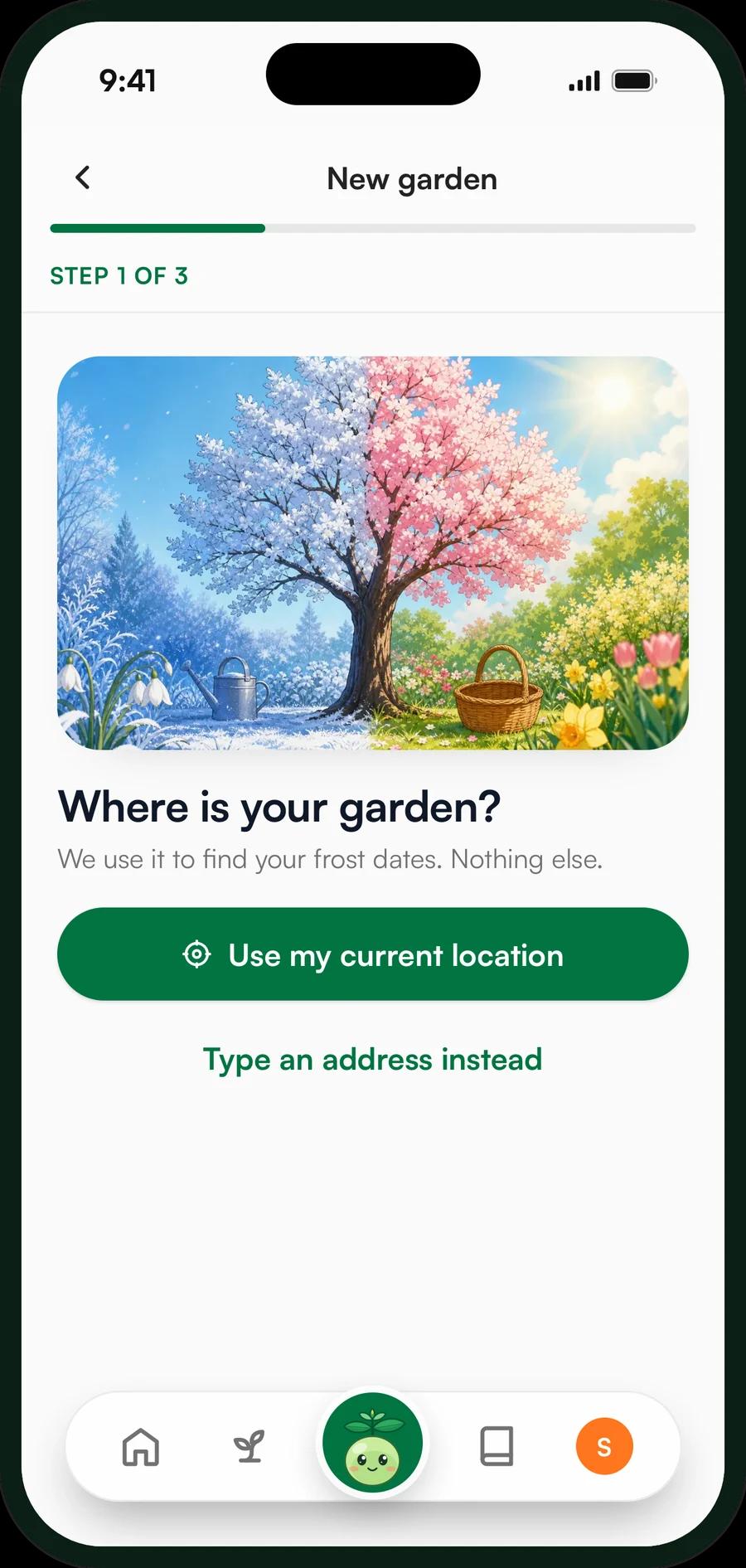
Add a garden: the town and its frost dates
2Step 2 of 7

Add your beds and pots

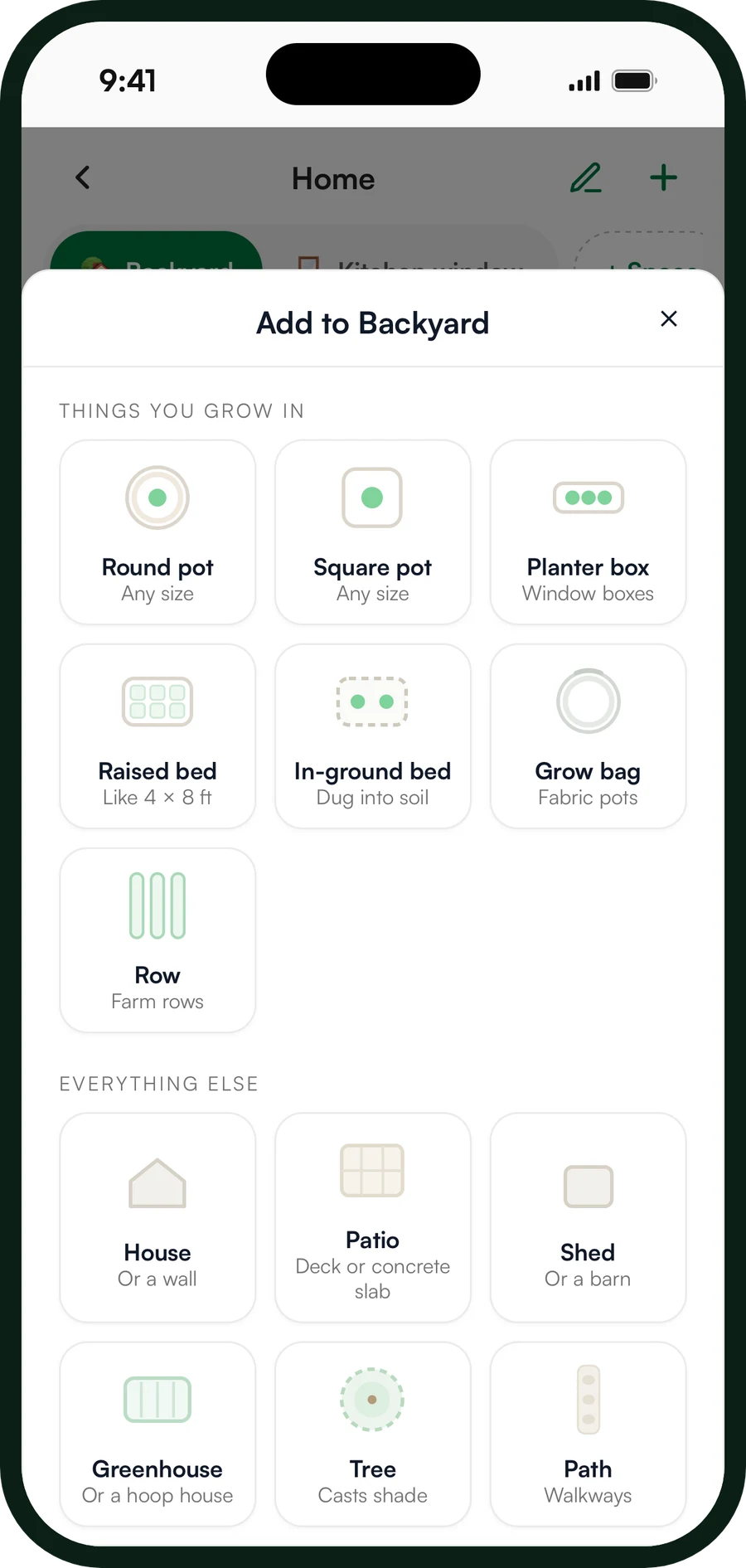
Put each bed and pot on your map where it really sits.

  1. Your map opens on Add to your map. Under Things you grow in, tap one, like Raised bed or Round pot.
  2. Set its Width and Length.
  3. Press and hold it, then drag it to where it really sits.
  4. Another one the same size? Tap Copy. A new one? Tap the green + button.
  5. Under Everything else, add your House, a Fence and each Tree.

The house, fences and trees are what make the shade, so the sun map needs them.

The Add to your map sheet
3Step 3 of 7

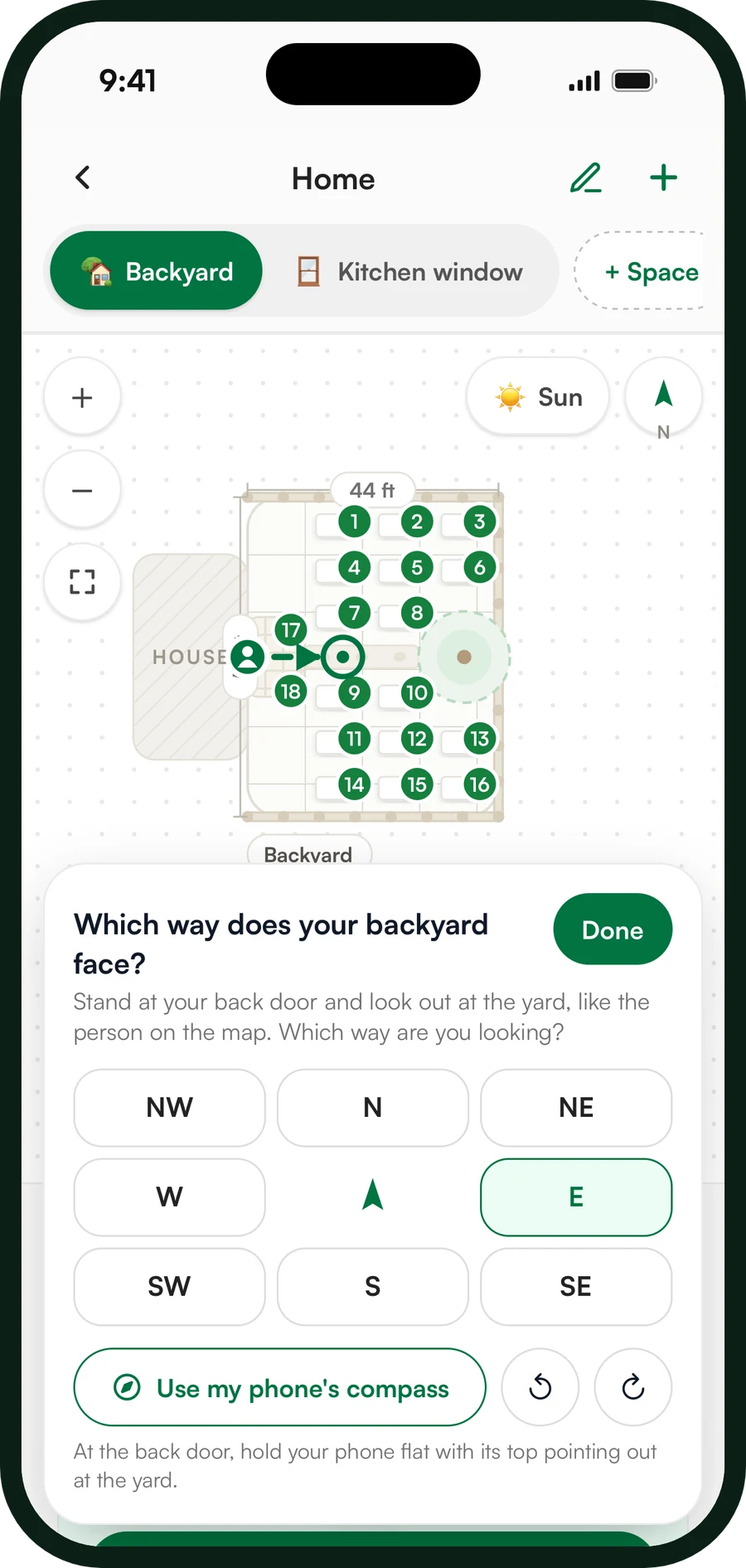
Set which way it faces

This is how the map knows where the sun comes from.

  1. Tap the N arrow on the map.
  2. Stand at your back door and look out at your space.
  3. Under Which way does your backyard face?, tap the way you are looking.
  4. On a phone you can tap Use my phone's compass instead. Hold it flat, the top pointing out at your space.
  5. Off by a little? Tap the arrows beside Fine-tune. Then tap Done.

Not sure? Pick the closest way. You can change it any time.

Which way does your backyard face? with the compass rose
4Step 4 of 7

See your hours of sun

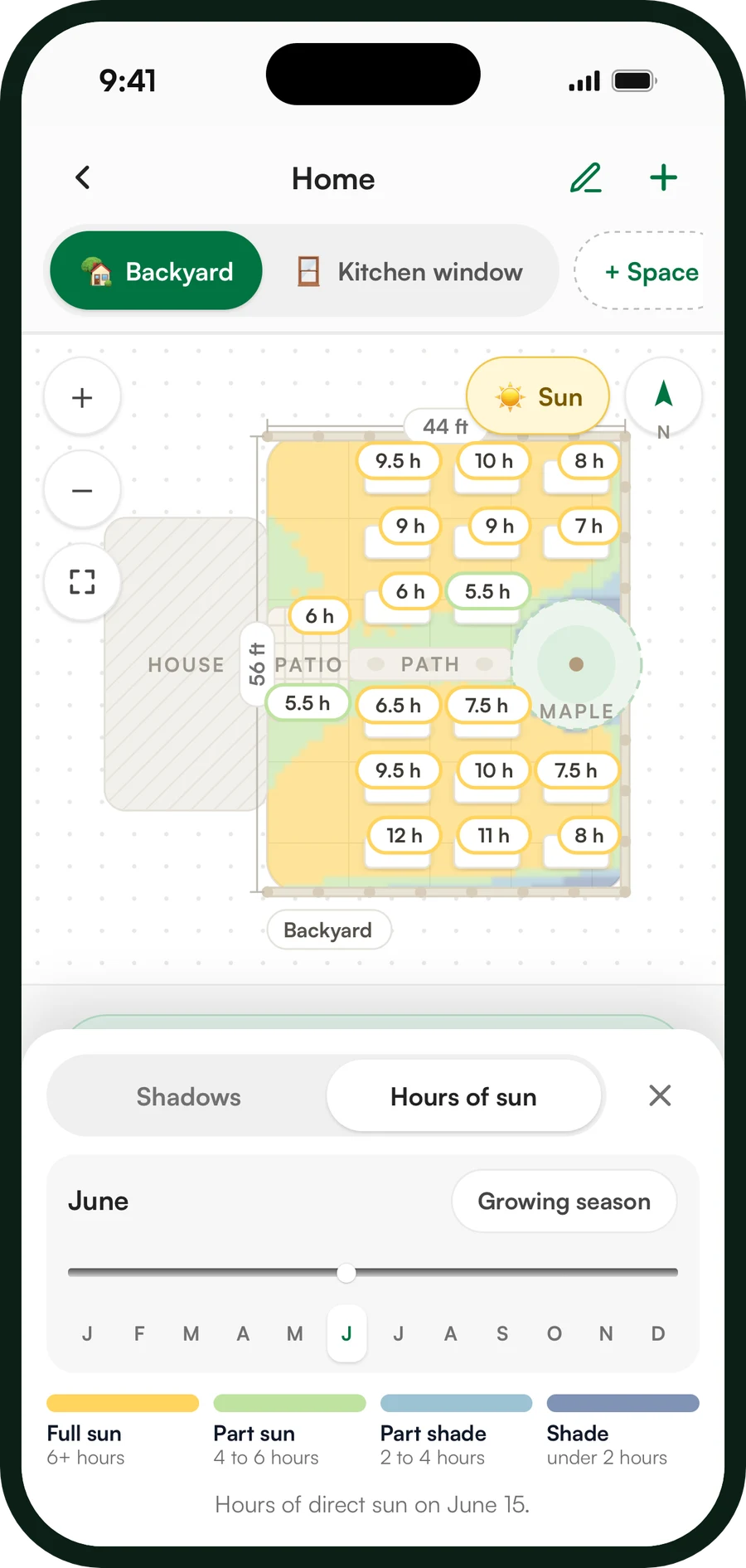
See where the sun falls, and how many hours each bed gets.

  1. Tap Sun.
  2. Tap Hours of sun. The warmer the colour, the more sun that spot gets. Each bed shows its hours.
  3. Slide the months to see each one, or tap Growing season for the whole season.
  4. Tap Shadows to watch the shade move from sunrise to sunset.

Slide to winter: the sun is low, so the shade reaches much further.

The sun map in June, each bed with its hours of sun
5Step 5 of 7

Ask Coach Lumen to plan it

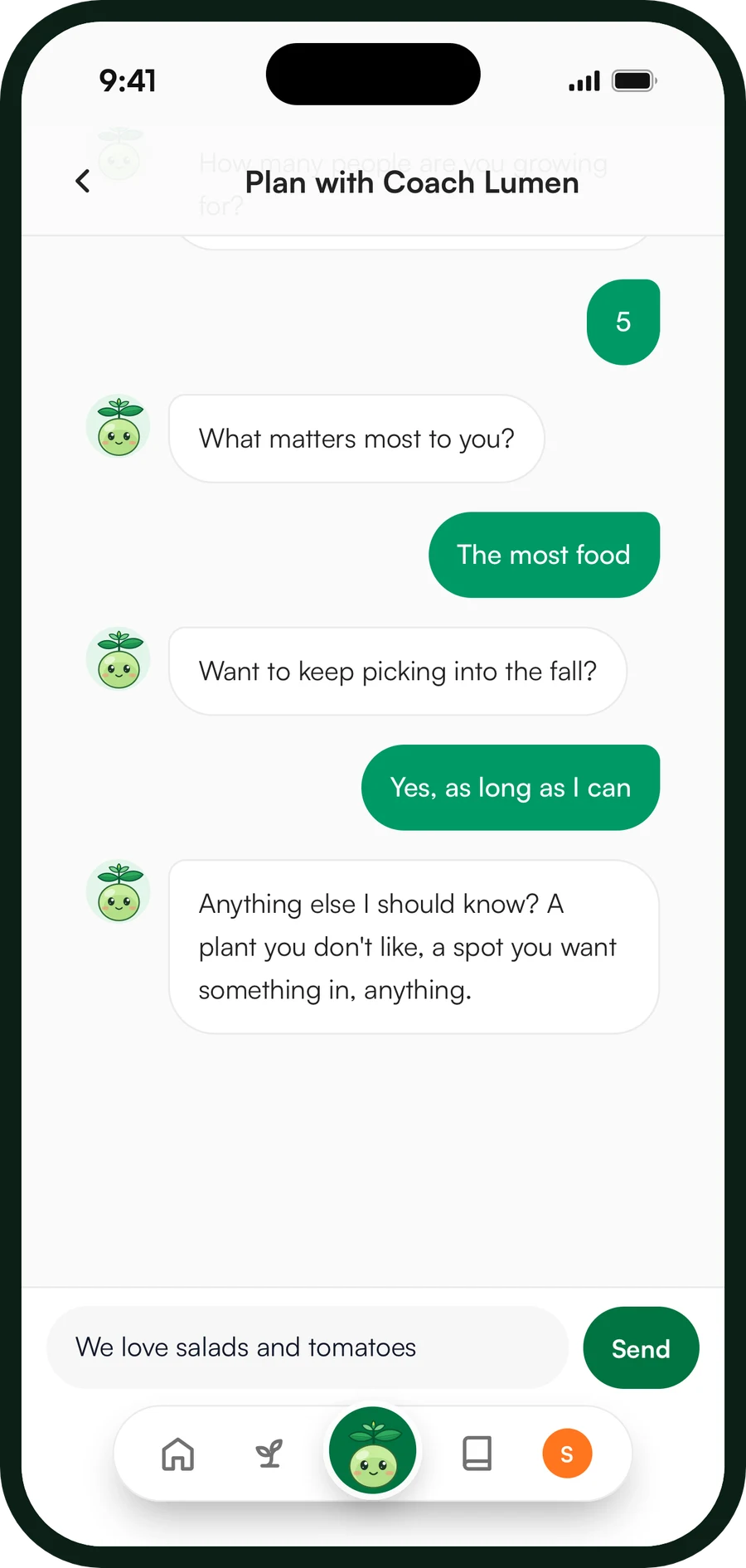
Answer a few quick questions. Coach Lumen does the rest.

  1. Under your map, tap Plan my garden. On a computer it is on the right.
  2. Keep the plants you picked with Keep them all, or tap Add a plant.
  3. Tap how many people you grow for, like Just me.
  4. Tap what matters most: The most food, A bit of everything or Easy wins (no seed starting indoors).
  5. Picking into the fall? Tap Yes, as long as I can or Spring and summer only.
  6. Tell her anything else, then tap Send. Nothing to add? Tap Skip.
  7. Tap Plan my garden.

Tell her anything in your own words, like "my partner hates cilantro".

Planning with Coach Lumen: the plants, the household and what matters most
6Step 6 of 7

Look it over and say yes

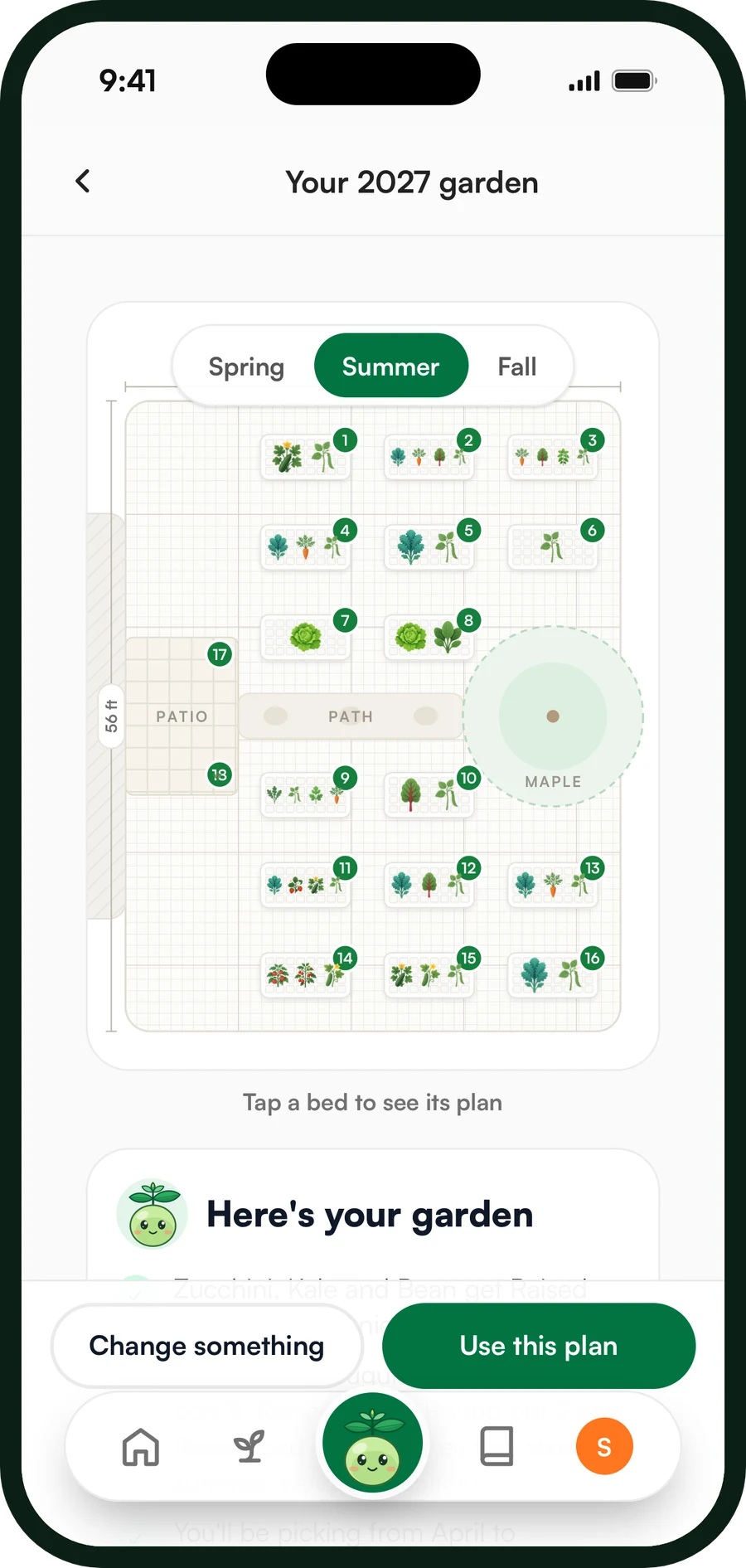
See your plan season by season, then put it in your beds.

  1. Tap Spring, Summer and Fall to see your beds change.
  2. Tap a bed to see what grows there all year, and why.
  3. Want something different? Tap Change something and say it your way, like More tomatoes.
  4. Happy with it? Tap Use this plan.
  5. Tap See my calendar to see every job on its day.

Next year, plan again. Coach Lumen moves each plant family to a new bed, so diseases can't build up.

The plan, season by season, with Coach Lumen's summary
7Step 7 of 7

Follow your reminders

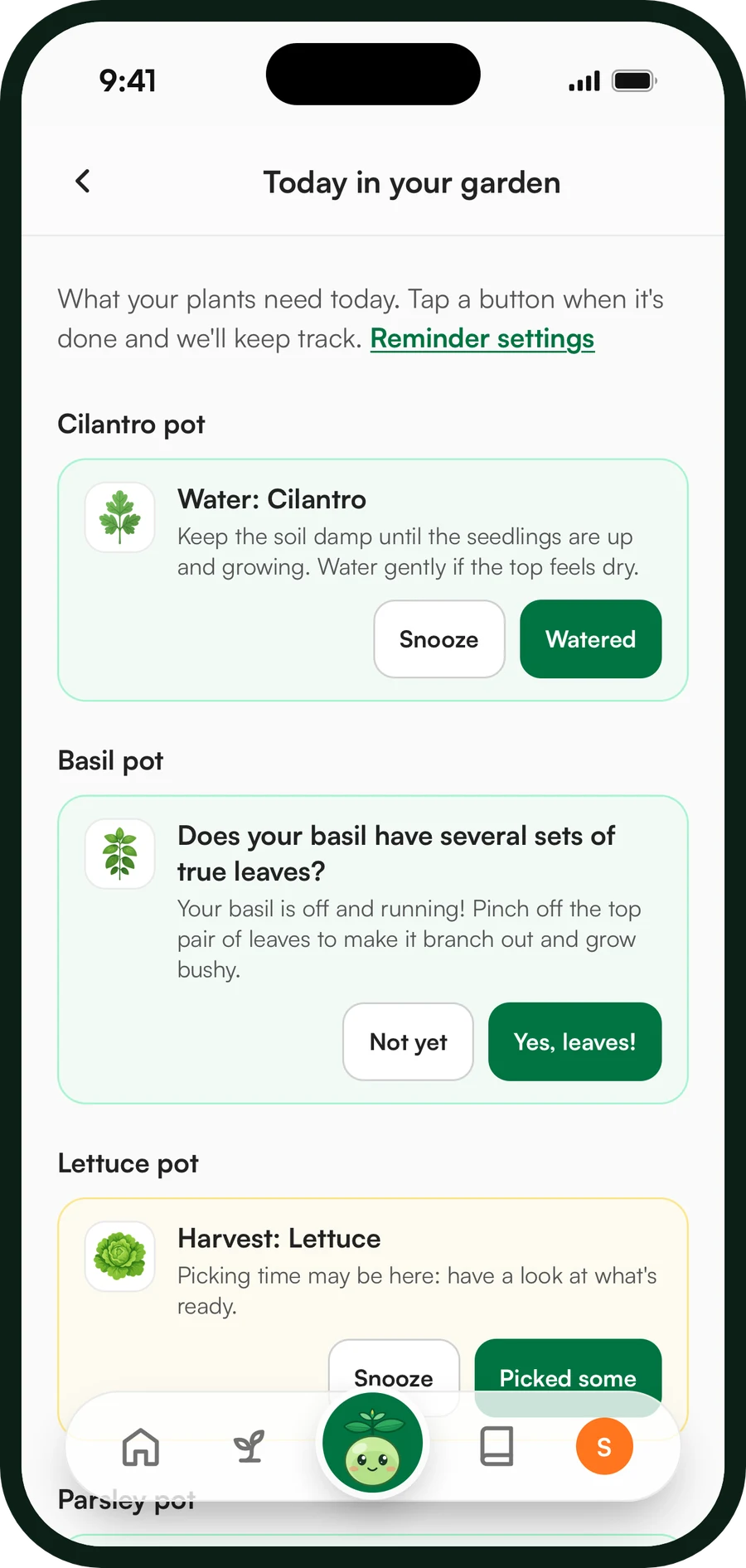
Each morning we tell you what to do in your garden today.

  1. Open the morning alert, or find 🌱 Today in your garden on your dashboard.
  2. Did the job? Tap its green button. It says what you did, like Watered.
  3. Not today? Tap Snooze. Asked something that hasn't happened yet? Tap Not yet.
  4. To pick the time: Settings, then Garden reminders, then What time.

After a good rain, we skip the watering reminder.

Today in your garden: the day's jobs with Done, Snooze and Not yet

Ready to plan yours?

It takes about ten minutes, and it's free.

No card needed. Free forever plan.